
| Date | Thumb Drive | Folders Backed Up |
|---|---|---|
| 07/19/2025 | JIF_BACK_01 | N:\CameraImages\*.* |
| 07/19/2025 | JIF_BACK_02 | N:\Tools\*.* |
| 07/19/2025 | JIF_BACK_02 | N:\$$Just4Jim\*.* |
| 07/19/2025 | JIF_BACK_03 | N:\$PDF FILES\*.* |
| 07/19/2025 | JIF_BACK_03 | N:\PPS Files\*.* |
| 07/19/2025 | JIF_BACK_03 | N:\Musical Selections\*.* |
| 07/19/2025 | JIF_BACK_03 | N:\My Music\*.* |
| 07/19/2025 | JIF_BACK_03 | N:\DawnWEBstick\*.* |
| 07/19/2025 | JIF_BACK_03 | N:\JIFWEBstick\*.* |
| 07/19/2025 | JIF_BACK_03 | N:\$JIM\*.* |
| 07/19/2025 | JIF_BACK_04 | N:\$DOWNLOADS\*.* |
| 07/19/2025 | JIF_BACK_04 | N:\$DASHCAM\*.* |
| 07/19/2025 | JIF_BACK_04 | N:\$$Fekete DropdownWeb\*.* |
| 07/19/2025 | JIF_BACK_05 | N:\Fekete_8Gig\*.* |
| 07/19/2025 | JIF_BACK_05 | N:\$USER\*.* |
| 07/19/2025 | JIF_BACK_05 | N:\Dawn\*.* |
| 07/19/2025 | JIF_BACK_05 | N:\Web\*.* |
| 07/19/2025 | JIF_BACK_05 | N:\BAT\*.* |
| 07/19/2025 | JIF_BACK_05 | N:\BATs\*.* |
| 07/19/2025 | JIF_BACK_05 | N:\Coins\*.* |
| 07/19/2025 | JIF_BACK_05 | N:\CutePDF_Output\*.* |
| 07/19/2025 | JIF_BACK_05 | N:\DosUtil\*.* |
| 07/19/2025 | JIF_BACK_05 | N:\EditPadPro6\*.* |
| 07/19/2025 | JIF_BACK_05 | N:\EditPadPro7\*.* |
| 07/19/2025 | JIF_BACK_05 | N:\$$Marcel\*.* |
| 07/19/2025 | JIF_BACK_05 | N:\IBM Benefits\*.* |
| 07/19/2025 | JIF_BACK_05 | N:\JIMTV\*.* |
| 07/19/2025 | JIF_BACK_05 | N:\$Fekete\*.* |
| 07/19/2025 | JIF_BACK_05 | N:\$Gloria\*.* |
| 07/19/2025 | JIF_BACK_05 | N:\$Medication\*.* |
| 07/19/2025 | JIF_BACK_05 | N:\$$$_Project_Content\*.* |
| 07/19/2025 | JIF_BACK_05 | N:\Illusions\*.* |
| 07/19/2025 | JIF_BACK_05 | N:\John_Scans\*.* |
| 07/19/2025 | JIF_BACK_05 | N:\Marty\*.* |
| 07/19/2025 | JIF_BACK_05 | N:\$$DoverWood\*.* |
| 07/19/2025 | JIF_BACK_05 | N:\Recipes\*.* |
| 07/19/2025 | JIF_BACK_05 | N:\Virus\*.* |
| 07/19/2025 | JIF_BACK_06 | N:\$$$Projects\*.* |
| 07/19/2025 | JIF_BACK_06 | N:\Purchases\*.* |
| 07/19/2025 | JIF_BACK_06 | N:\$$Fekete DropdownWeb\*.* |
| 07/19/2025 | JIF_BACK_06 | N:\AC_Water_Originals\ |
| 07/19/2025 | JIF_BACK_06 | N:\Fekete_8Gig\ Multiple Dated copies |
 All Bacups on 128Gb USB Thumb Drive
Backups are un-scheduled. Executed RANDOMLY
Backups.html – Lots of Info - Backup Times & Space Each Drive
All Bacups on 128Gb USB Thumb Drive
Backups are un-scheduled. Executed RANDOMLY
Backups.html – Lots of Info - Backup Times & Space Each Drive
Batch Files – Each Batch Verifies correct USB stick & drive letter
Backups are on 64 Gig USB Sticks (1-6 for the time being).
MM
Daily Backup of Files between C: and N: also copies to USB Drives and Networked Systems
Menu
– A backup of MM
BackN
Periodic Backup of Drive N: to 6 USB Sticks Calls Its own Bats
Periodically Executed Batch Files
DoFamilyJim
Creates a Backup of Fekete Web files and Lions Web File
DoFamily
Creates a Backup of Fekete Web files for John, Alex & Sue
Back8Gig
Creates Backup of Fekete_8Gig with Current date (Clean up OLD ones periodically)
DoStashH
Creates a Backup of C:\$Jim\Stash for the Belt USB stick
MoveLogs
Moves C:\$$Logs to N:\$$Logs Deletes Source
MovePics
Gathers C:\Users\Jim\Pictures\*.* to N:\Cameraimages\
MoveHill
Moves C:\Users\Jim\Pictures\ScreenCaptures\ParliamentHill\*.*
N:\CameraImages\ScreenCaptures\ParliamentHill\ Deletes Source
MoveAudioVideo
Moves C:\Users\Jim\Downloads\AudioVideo\*.* N:\$Downloads\AudioVideo\
Deletes Source
Marcel2L
Gathers Marcel Files
NEED to create DoMarcel calling each batch file to propogate to systems CHECK first
ALL USB Sticks upgraded to 128 Gig to accommodate data growth.
Updating is from a batch file C:\BAT\BackN.bat
BackN calls multiple batch files to backup to each USB stick from 1 to 6.
The Sticks are labelled JIF_BACK_01 to JIF_BACK_06. The batch file verifies that
you have the correct USB stick inserted for the requested backup operation, preventing
accidental operations.
The USB must be Z: which can be accomplished manually from
Computer Management
Disk Management
Change Drive Letter (of the USB drive you want to make drive Z:)
There is a batch file called MakeZ which uses Dispart utility
and calls
MakeZ.txt
SELECT VOLUME 13
ASSIGN LETTER=Z
however MakeZ assumes the USB stick you inserted is VOLUME 13. It would be prudent to
verify the inserted volume BEFORE executing the MakeZ batch file.
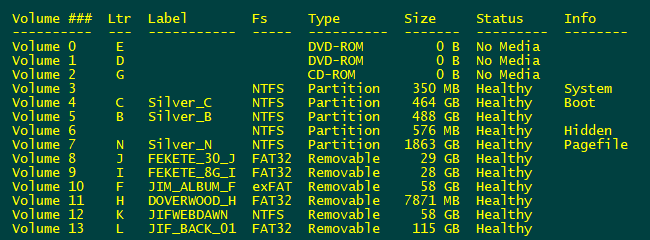
Verifying the volume is as follows See Sample image below
Diskpart
List Volume
will display all the volumes on your system. Verify that the inserted USB is actually
Volume 13 before executing MakeZ.bat. Of course you can modify MakeZ.txt to the correct
volume. The label of each drive is clearly displayed so you can't go wrong.
To exit DISKPART enter EXIT which will return you to your operating system.
If you want to learn about DISKPART by all means take some time to familiarise
yourself with this POWERFUL utility.
After all this — BackN allows to select the appropriate operation,
calling the appropriate batch file from BackMyData01.bat to BackMyData06.bat as
well as MakeZ.bat. Obviously if you know which USB you wish to update you
can mount the stick, make sure it is Z: and execute the appropriate BackMyData?? batch file.
Diskpart Commands Image
Note that entering DISKPART changes your prompt to
DISKPART>
In the sample image my USB JIF_BACK_01 was Volume 13 Drive Letter L
DISKPART Commands below
DISKPART> list volume
Volume ### Ltr Label
... etc
----------- --- -------------
Volume 0 E
... etc
....
....
Volume 13 L
JIF_BACK_01
......
DISKPART> select volume 13
volume 13 is the selcted volume.
DISKPART> assign letter=Z
DiskPart successfully assigned the drive letter or mount point.
DISKPART> exit
After exiting DISPART you are returned to your Operating Systems regular prompt.
USB Drive letter is now Z:
MakeZ.bat Uses MakeZ.txt assumes volume 13 is Drive L
Assigns JIF_BACK_01 (or specific USB drive in use) to become drive Z:
Initial Backup Created 08/19/2021
Updated:
Aug-20-2021 19:43
Nov-05-2021 18:18
Mar-03-2025
Sometimes \ will type à shift À or # shift ~ MUST press Ctrl Shift Sometime TWICE
Sometimes ] will type ç MUST press Ctrl Shift Fixes the problem
Sometimes ? will type é MUST press Ctrl Shift Fixes the problem


Click me for
Larger image